


Introduction
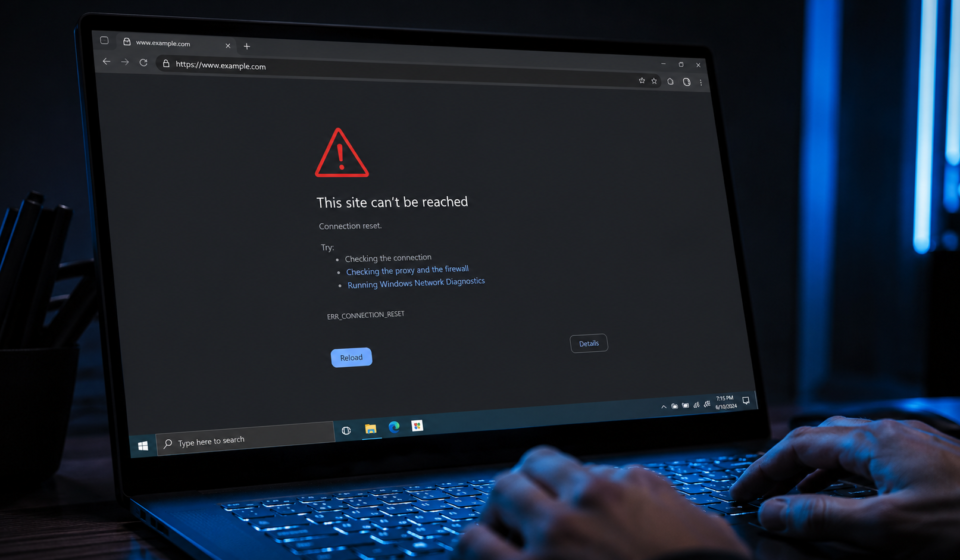
If Chrome has ever stopped you with a message like “[site] sent an invalid response. ERR_SSL_PROTOCOL_ERROR,” you already know how disruptive it is. The page refuses to load, there’s no obvious explanation, and reloading rarely helps. This error is one of the more common SSL/TLS-related failures in Chrome, and it can appear on almost any website — not because the site is necessarily broken, but because something in the secure connection between your browser and the server has gone wrong.
This guide explains exactly what causes ERR_SSL_PROTOCOL_ERROR, why it happens, and how to fix it on Windows, Android, and iOS. It’s written for anyone encountering this error, whether you’re a casual browser or manage websites professionally.
What Is ERR_SSL_PROTOCOL_ERROR?
ERR_SSL_PROTOCOL_ERROR is a Chrome-specific error code that appears when the browser cannot complete a secure SSL/TLS handshake with a web server. Every time you visit an HTTPS site, your browser and the server perform a handshake: they agree on an encryption protocol, exchange certificates, and establish a secure channel before any content loads. When that handshake fails partway through — due to a mismatched protocol version, a corrupted certificate, or interference from software on your device — Chrome halts the connection and shows this error instead of the page.
It’s important to distinguish this from other SSL-related Chrome errors:
- ERR_CERT_DATE_INVALID — the certificate has expired or isn’t yet valid.
- ERR_CERT_AUTHORITY_INVALID — the certificate issuer isn’t trusted.
- ERR_SSL_VERSION_OR_CIPHER_MISMATCH — browser and server can’t agree on an encryption method.
- ERR_SSL_PROTOCOL_ERROR — the handshake itself breaks down, often before certificate details are even evaluated.
Understanding this distinction matters because each error has a different root cause and a different fix.
Common Causes of ERR_SSL_PROTOCOL_ERROR
1. Outdated or Misconfigured SSL/TLS Settings
Chrome and modern servers rely on current TLS versions (TLS 1.2 and 1.3). If your browser or operating system still has older protocols like SSL 3.0 or TLS 1.0 enabled — or disabled in a way that conflicts with the server’s requirements — the handshake can fail outright.
2. Corrupted Browser Cache or Cookies
Chrome stores cached SSL state information locally. When this cache becomes corrupted, it can cause Chrome to attempt a handshake using stale or invalid data, triggering the error even on sites that work fine in other browsers.
3. Antivirus or Firewall SSL Scanning
Many antivirus programs include an “HTTPS scanning” or “SSL inspection” feature that intercepts encrypted traffic to scan it for threats. This process re-encrypts traffic using its own certificate, and if implemented poorly, it can break the handshake and produce ERR_SSL_PROTOCOL_ERROR.
4. Incorrect System Date and Time
SSL certificates are time-sensitive. If your device’s clock is significantly wrong, Chrome may fail to validate the secure connection, since certificate validity windows depend on accurate system time.
5. Problematic Browser Extensions
Extensions that modify request headers, inject scripts, or manage privacy/VPN settings can sometimes interfere with the TLS handshake, especially ad blockers and “HTTPS everywhere”-style tools.
6. QUIC Protocol Conflicts
Chrome’s experimental QUIC protocol (an alternative to traditional TCP/TLS) occasionally causes conflicts with certain networks or corporate proxies, resulting in this error.
7. Server-Side Misconfiguration
Sometimes the problem isn’t on your end at all. If a website’s server has an outdated TLS configuration, an incomplete certificate chain, or a misconfigured load balancer, every visitor may see this same error regardless of their device.
How to Fix ERR_SSL_PROTOCOL_ERROR
On Windows (Desktop Chrome)
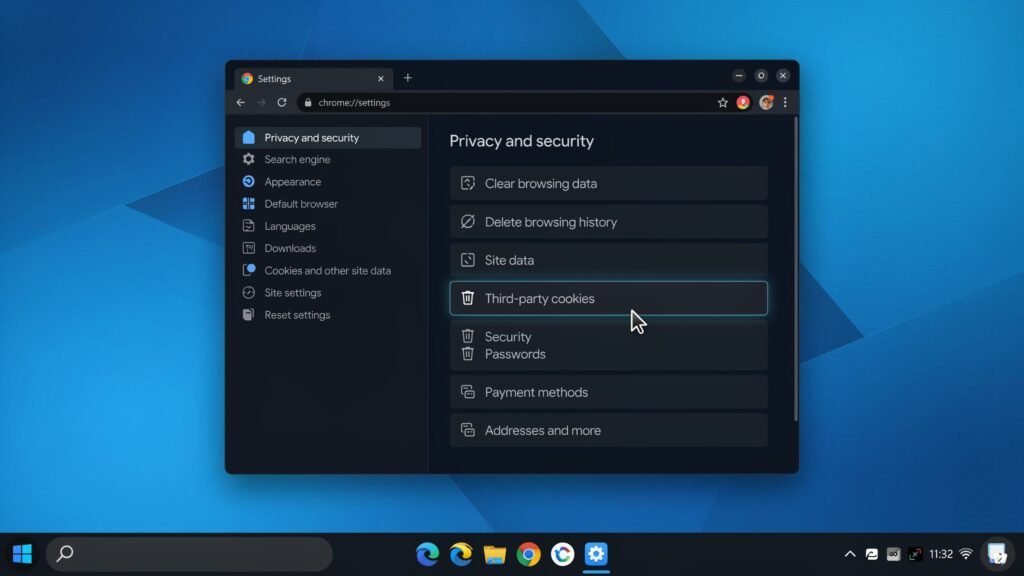
- Clear browsing data. Go to
chrome://settings/clearBrowserData, select “Cached images and files” and “Cookies and other site data,” and clear data for “All time.” - Check your system clock. Right-click the clock in your taskbar → “Adjust date/time” → enable “Set time automatically.”
- Disable QUIC protocol. Visit
chrome://flags/#enable-quic, set it to “Disabled,” and relaunch Chrome. - Temporarily disable antivirus SSL scanning. Open your antivirus settings and look for “HTTPS Scanning,” “SSL Scan,” or “Web Shield,” and disable it temporarily to test.
- Update Chrome. Go to
chrome://settings/helpto check for and install the latest version, since older builds may lack current TLS support. - Reset Chrome flags. Visit
chrome://flagsand click “Reset all” if you’ve previously changed experimental settings. - Check TLS settings in Windows. Open Internet Options → Advanced tab → ensure TLS 1.2 and TLS 1.3 (if available) are checked, and older SSL versions are unchecked.
On Android
- Clear Chrome’s cache: Settings → Apps → Chrome → Storage → Clear Cache.
- Confirm your device date and time are set automatically under Settings → System → Date & Time.
- Temporarily disable any VPN or “Private DNS” settings under Network & Internet, since these can interfere with the handshake.
- Update the Chrome app through the Play Store.
- Restart your device to clear temporary network state.
On iOS
- Close Chrome completely and reopen it.
- Go to Settings → General → Date & Time and confirm “Set Automatically” is enabled.
- If using a VPN or content-filtering app, disable it temporarily to test.
- Update Chrome via the App Store.
- As a last resort, offload or reinstall the app to clear corrupted local data.
When the Problem Is on the Website’s Side
If you’ve tried the above and the error persists only on one specific site — while others load normally — the issue likely sits with that site’s server configuration. In this case, there is little a visitor can do beyond:
- Trying again later, since the site owner may be mid-update to their SSL certificate.
- Accessing the site from a different network to rule out ISP-level interference.
- Contacting the site owner or checking their status page if one is available.
For site owners, common fixes include renewing an expired certificate, correcting an incomplete certificate chain, updating server-side TLS configuration (e.g., in Apache, Nginx, or a CDN/proxy layer), and ensuring the server supports modern TLS versions.
Preventing ERR_SSL_PROTOCOL_ERROR in the Future
ERR_SSL_PROTOCOL_ERROR
- Keep Chrome and your operating system updated automatically.
- Avoid installing unnecessary browser extensions, especially those requesting broad permissions.
- Keep your device’s date and time set to automatic.
- Be cautious with antivirus tools that offer aggressive HTTPS scanning; use reputable software with well-tested SSL inspection.
- Periodically clear browser cache if you frequently encounter connection errors.
Frequently Asked Questions
1. Does ERR_SSL_PROTOCOL_ERROR mean my device has a virus?
No. This error is almost always related to SSL/TLS handshake issues, not malware. However, some antivirus programs’ own scanning features can inadvertently cause it.
2. Why does this error happen only on some websites and not others?
This usually points to a server-side issue with that specific site’s SSL configuration, rather than a problem with your device or browser.
3. Can a VPN cause ERR_SSL_PROTOCOL_ERROR?
Yes. VPNs reroute and sometimes inspect traffic, which can interfere with the TLS handshake. Disabling the VPN temporarily helps confirm whether it’s the cause.
4. Is ERR_SSL_PROTOCOL_ERROR the same in Firefox or Edge?
No, each browser has its own error naming. Firefox typically shows “SSL_ERROR_PROTOCOL_VERSION_ALERT,” while Edge, being Chromium-based, often shows the same ERR_SSL_PROTOCOL_ERROR message as Chrome.
5. Will clearing cookies delete my saved passwords?
No. Clearing cache and cookies does not remove saved passwords, which Chrome stores separately in its password manager.
6. Does restarting my router help?
Sometimes. If the issue stems from network-level interference (such as a misconfigured proxy or DNS setting), restarting your router can resolve it.
7. Why do I only see this error on public Wi-Fi?
Public networks often use captive portals or proxies that intercept HTTPS traffic, which can break the SSL handshake and trigger this error more frequently than on private networks.
Conclusion
ERR_SSL_PROTOCOL_ERROR is a handshake-level failure between your browser and a website’s server, and it can stem from outdated protocols, cache corruption, antivirus interference, incorrect system time, problematic extensions, or a server-side misconfiguration. Most cases are resolved by clearing Chrome’s cache, checking your device’s date and time, disabling aggressive SSL scanning, and keeping Chrome updated. If the error persists on a single site only, the issue is most likely on that website’s end rather than yours. Understanding these distinctions — and knowing which fix applies to which cause — turns a confusing error message into a quick, solvable problem.