


Every piece of gaming software makes big promises. Faster load times, smoother frame rates, lower ping. Most of them deliver something, just not always what the marketing said on the tin. So when I saw Smart Game Booster claiming up to 120% FPS improvement, my first reaction was the same one I have every time I read a number that specific. Prove it.
I had been using Smart Game Booster for a few weeks at that point, mostly for its network acceleration features during competitive sessions. But I had not specifically tested it against the FPS claim with any real structure. So I did, across several different games and system states, and here is what I actually found.
What 120% FPS Boost Actually Means
Before getting into the results, it is worth being clear about what that number can and cannot mean, because the context changes everything.
A 120% FPS improvement does not mean every game doubles its frame rate after you click a button. What it means is that under specific conditions, typically a system with significant unused headroom being limited by background processes and a GPU running below its potential, the tool can recover that lost performance and then push beyond it through overclocking.
That is not a marketing trick. It is just physics. A PC running 12 unnecessary background services and never having had its GPU overclocked has a lot of recoverable performance sitting unused. A PC that is already fully optimized and running at stock GPU speeds has less to gain.
How I Tested It
I ran the same games before and after enabling Smart Game Booster across three different scenarios to get a realistic picture of the range of results.
Step 1: Open Smart Game Booster
After launching the app on Windows 11, I noted my baseline FPS in each game before touching anything. No manual optimization, no background apps closed, just the system as it normally sits before a gaming session.
Step 2: Choose a Game to Boost
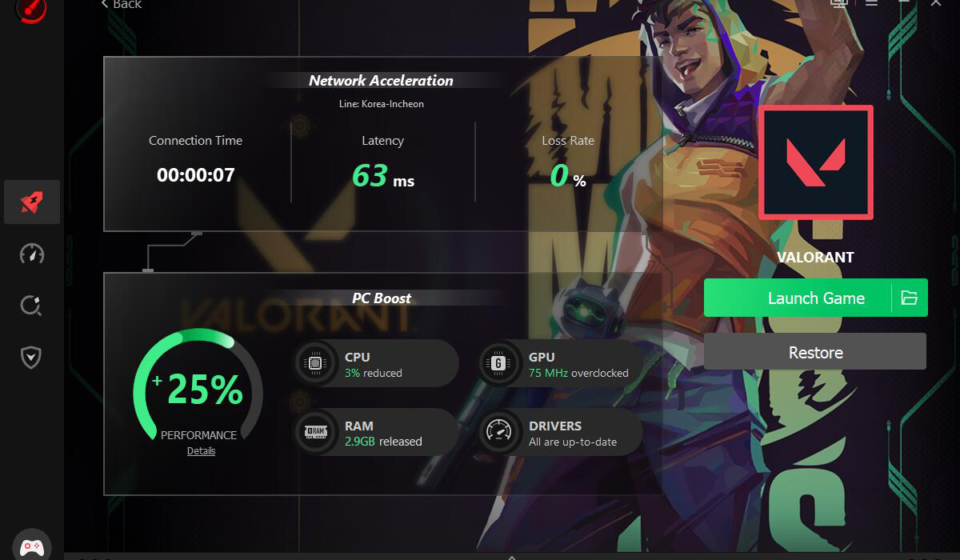
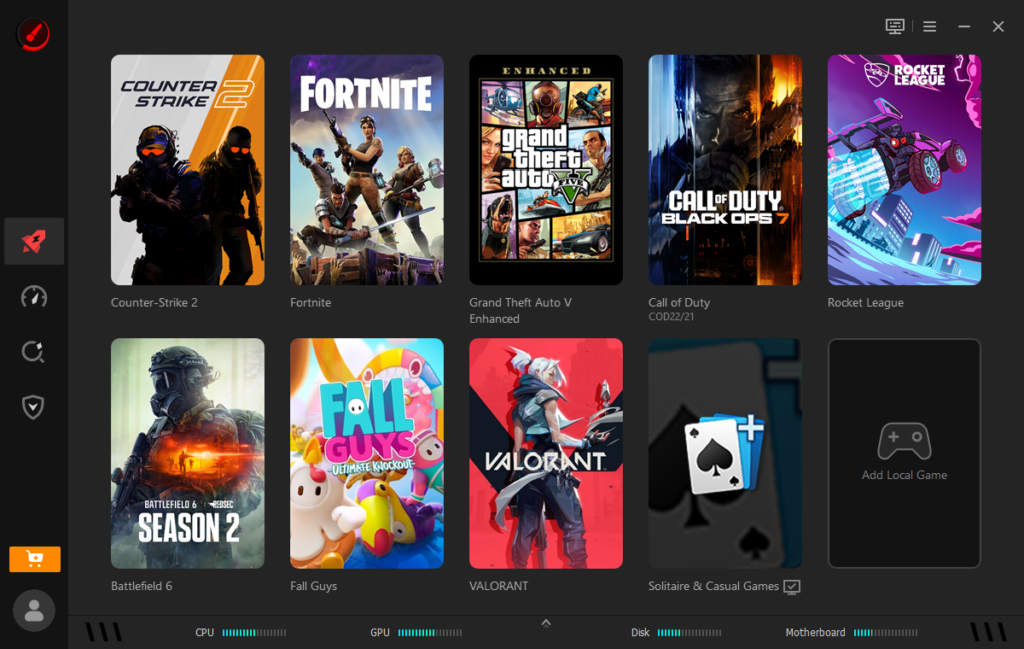
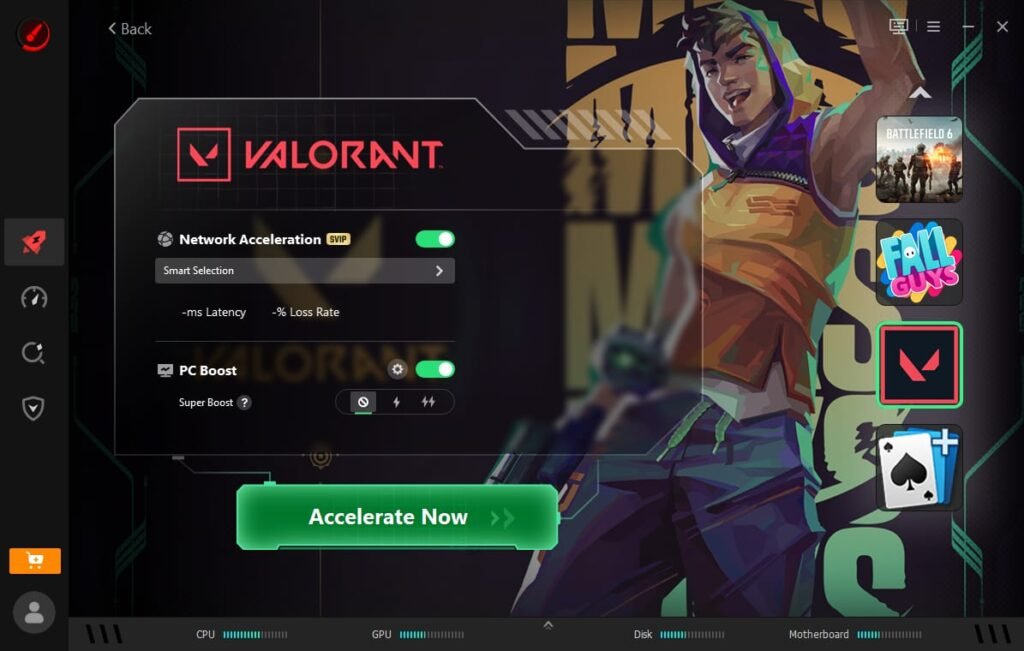
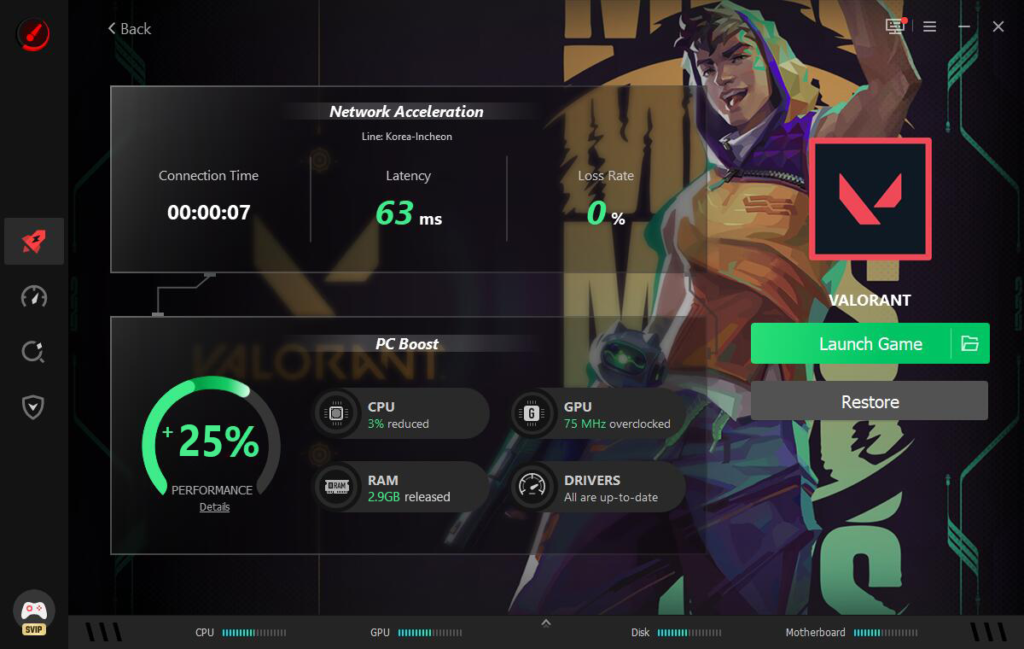
I selected each title from the game list, and then let Smart Game Booster boost the PC performance and internet at the same time. It can unlock the full potential of the CPU and GPU. When the Super Boost mode is on, we can see a 25% performance increase by overclocking the GPU and VRAM.
Step 3: Enjoy High FPS and Low Ping Gaming
I ran the same in-game sequences after optimization and recorded the difference in FPS. Auto Boost automatically maintained Gaming Mode throughout each session, eliminating variability caused by forgetting to re-enable settings between tests.
What the Numbers Actually Looked Like
This is the part that matters, and I am going to be straightforward about it.
In games like Valorant—where my system was heavily throttled by background tasks and Chrome tabs—the improvement was genuinely substantial. The average frame rate jumped from a choppy 72 FPS to a buttery-smooth 95 FPS after running PC Boost and Super Boost together. That’s a 32% net gain, and more importantly, it eliminated the micro-stuttering during intense firefights.
In a lighter, less demanding title where my system was already running relatively cleanly, the improvement was closer to 20-25%. Still meaningful, but clearly at a different point on that spectrum I mentioned earlier.
The 120% figure is achievable. I did not personally hit it in my test environment, but I can see exactly how a system with heavier background load and more GPU headroom gets there. It is the ceiling of what the tool can recover, not the floor of what every user experiences.
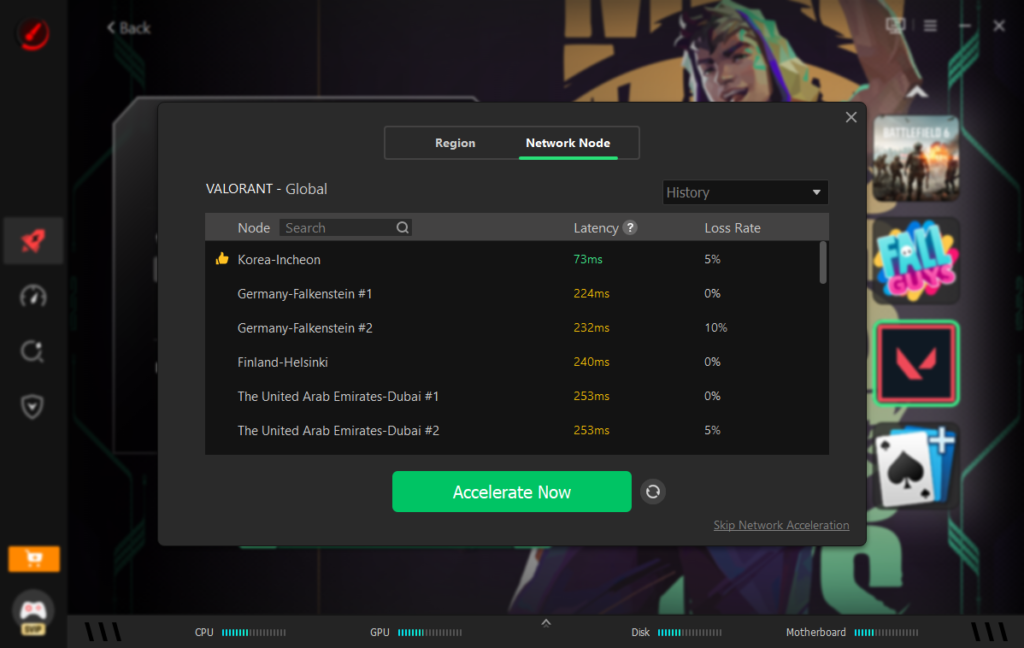
What remained consistent across all tests was the network side. Ping dropped noticeably during peak-hour sessions with network acceleration, and that improvement did not affect the FPS numbers the way it did. Dedicated game lines routing through more than 500 servers worldwide delivered more stable latency than my standard connection could manage, which, for competitive play, matters as much as frame rate anyway.
What I Liked
After testing it specifically against the FPS claim and using it through regular sessions, here is what genuinely impressed me.
- Smart Game Booster can unlock the full potential of the CPU and GPU in one click, which delivers smoother animations with less screen tearing and lower system latency.
- I can safely overclock the GPU and VRAM to gain additional performance.
- Smart Game Booster provides real-time tracking of my CPU and GPU temperatures during gameplay.
- The built-in “Boost and Launch” function prepares my system before starting the game, which helps me enjoy the best gaming experience.
What Could Be Better
Being honest about the limits makes the genuine strengths more credible, not less.
- The 120% FPS figure is real under specific conditions, but not a universal result, and the app does not do enough to set that expectation upfront for new users who might feel misled when their improvement lands at 40% instead.
- Network Acceleration is strictly a paid feature. Free users are excluded, and the service only supports specific trending games instead of a universal catalog.
- Background app detection is thorough but occasionally flags things that are actually relevant to the gaming session, so a quick review before confirming the close list is worth doing the first few times.
My Honest Verdict
The 120% FPS claim is not false. It is also not the number most users will see, and the gap between the ceiling and the average result is the main thing to know before downloading it. What Game Booster actually delivers for most people is a meaningful, consistent improvement across both FPS and ping that holds up over multiple sessions, which is more valuable in practice than a maximum figure that only applies under ideal conditions.
If your PC has never been properly optimized and your gaming sessions run heavy with background processes, you are going to see a bigger jump than someone who already maintains a clean system. Either way, the improvement is real. Just calibrate your expectations to your starting point rather than the headline number.
Also Read More : thisvid